Product
How to Edit Podcasts Faster on Mac
Are Podcast’s Getting Harder to Edit?
It’s no secret that podcast consumption and creation have gone up rapidly in the last few years, which is pretty awesome. Why? It’s a very human-to-human style of content. Even the solo ones. At times you can forget you’re not sat in the room with that person as you get lost in the topic, which is a lovely experience to have.
So, it’s not that they’re getting harder per se, but the demand is high. People now expect to be informed of episodes through short-form clips, separate topics split up into their own videos, clean versions, captions, and more. People want choice, and people want a reason to spend their time (usually a lot of it!), with one creator.
Given that podcasts are built from words, it makes sense to craft your show with the words that you or your guests have actually said. Like a mini story in itself. The traditional method of clipping up a podcast is time-consuming: listening back, making a cut, double-checking, then doing it again and again. Those minutes quickly become hours.
Start with the Words, Not Timeline
Using tools before you even add your fancy brand assets can be incredibly helpful. There are a few good ones out there, all with their own unique stance and workflow.
Tools like Descript helped prove that editing speech from text can be much faster than living entirely in a timeline. Sequence takes that idea in a Mac-native direction with on-device transcription (no cloud - so you can edit anywhere and everywhere), intuitive text-based edits plus a whole host more which I’ll cover most of below. All of the choices you make can then be moved in one-click into your favorite editing suite such as Final Cut Pro and DaVinci Resolve (direct export coming soon!).
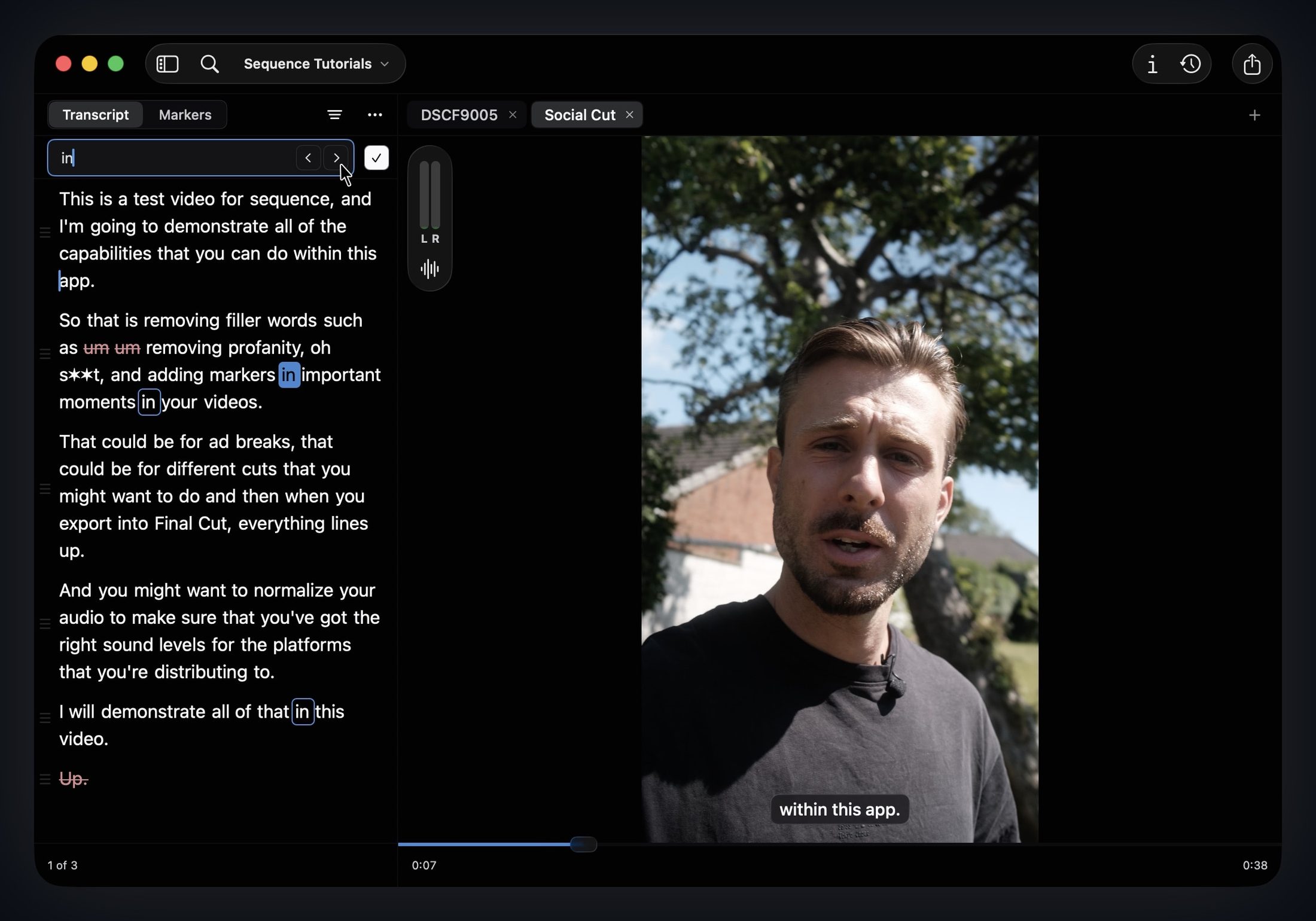
Being able to scan through text is much faster than listening back through a clip, and we’ve made that even easier with Global Search (search across ALL media you’ve ever imported in Sequence ⌘F) and Find within Transcript (⌘⌥F) which highlights words in a given transcript. Then, with Jump to Word you can seek to that point in the video instantly - making it crazy fast to find what you’re looking for.
Cut the Episode with Text-based Edits
Working with the words inside Sequence is very easy. You can select words, or sentences and disable them, which removes them from the edit, but clearly shows you what you’ve removed (shown with a strikethrough and red styling). The reason we decided to do it that way is because of context.
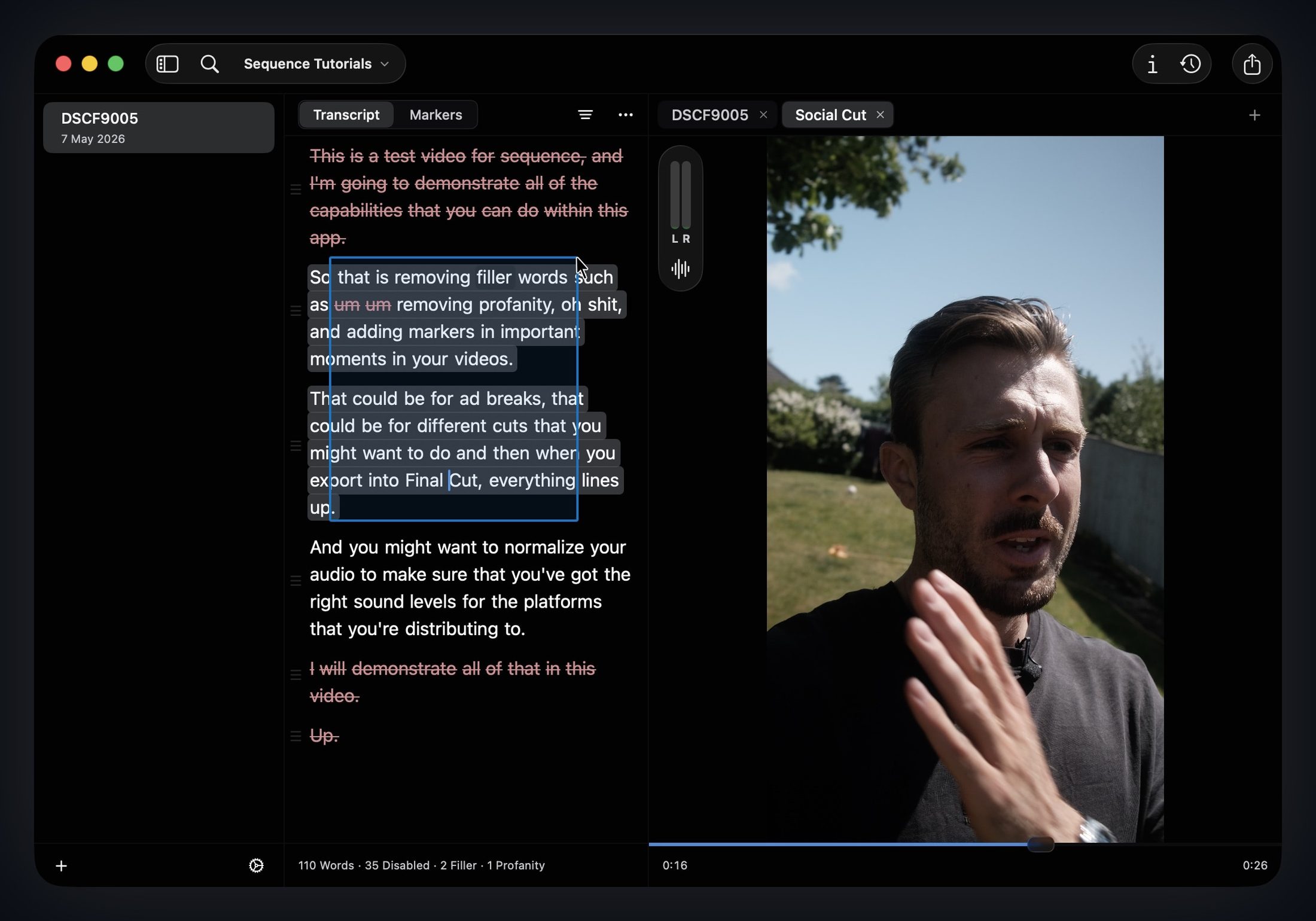
Inside Sequence you can create variants, which is super helpful for creating multiple different cuts, whether thats a clean family-friendly edition or short reels for Instagram. When you’re making variants, context is key. You can’t tell the story or direct the flow without knowing what you’re working with. There might have been a gem that got lost from the main long form content but would have been brilliant for little reel. Now you know, and can see what parts you want to share.
With the nature of podcasts and talking with guests, the likelihood of sentences getting jumbled, retaken or filled with ums and ahs is fairly high. Editing those out by hand is tedious. Sequence can find and disable all filler words, and if some are missed you can manually add to the filler word detection. We provide a basic set to begin with without inferring to much of your editing preferences. This keeps the pace and rhythm tight which is vital for your short-form edits from a long episode.
Family Friendly
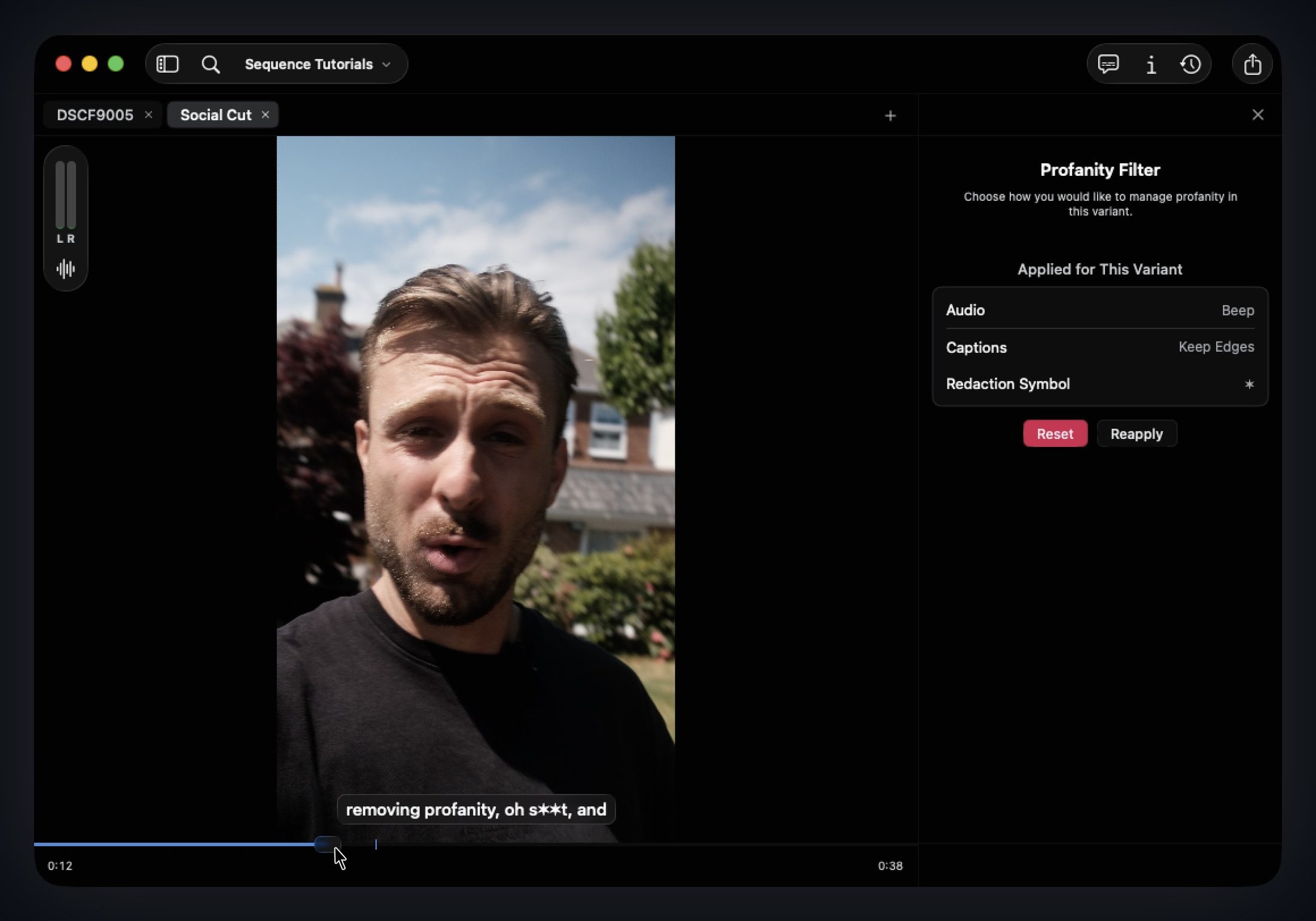
Another tedious part of editing a clean version is removing profane words throughout a long show. With Sequence this is achieved in a handful seconds. All you’ve got to do is check the words you want removed (we provide a base set - of which you can delete or add to), set the redaction style, whether it’s a skip, silence or a BEEP! - whichever fits your style more.
If the classic asterisk doesn’t fit your brand you can change to your liking, even emojis.
Sponsorships
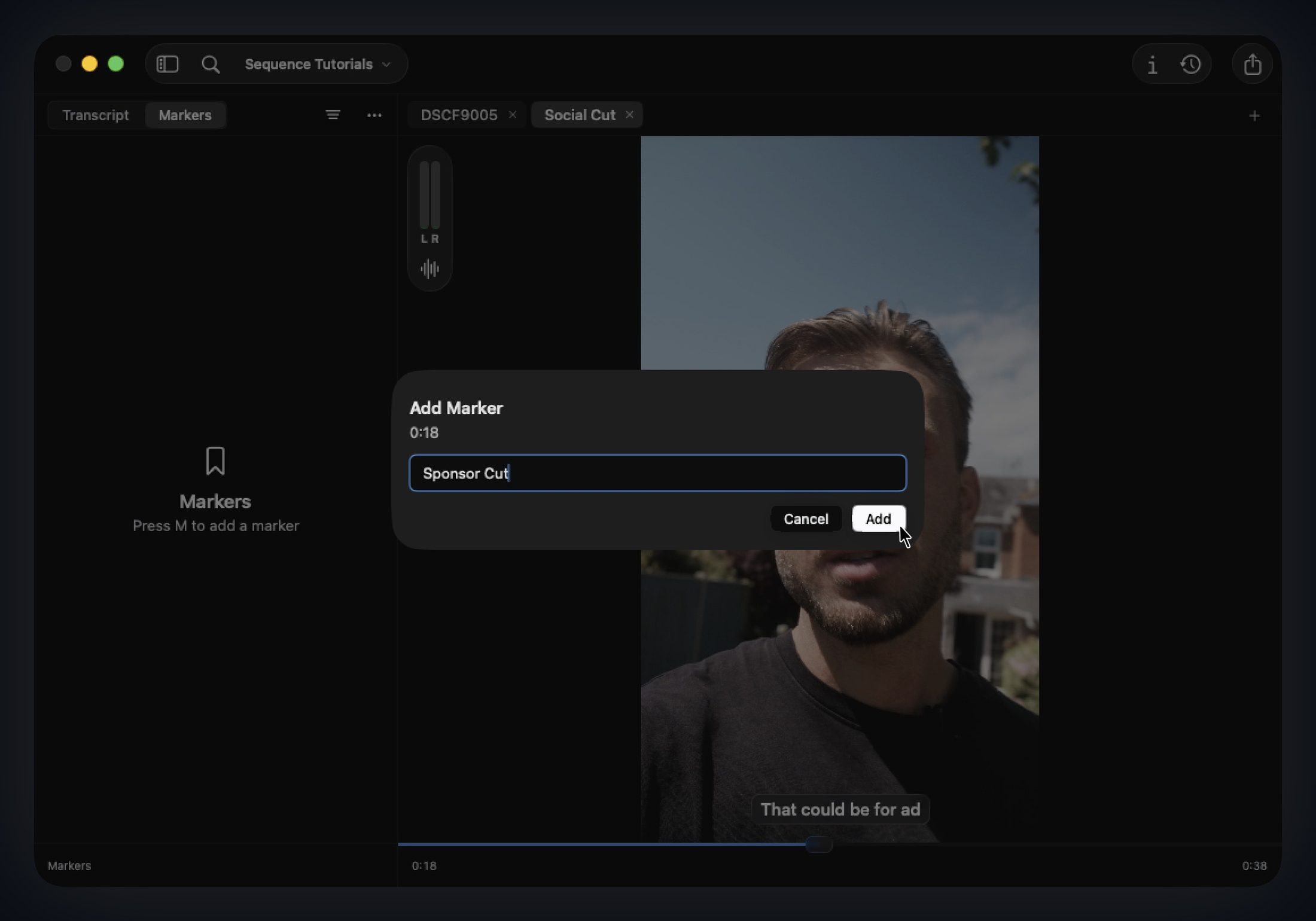
A key part to growing your business as a podcast is sponsorships and partnerships. Within Sequence, you can find the point where you’re going to cut and add a pre-recorded ad break. Find within Transcript can help you navigate to that point super quick, then use Markers (M shortcut key) to set that as your bookmark. That marker then appears in Final Cut Pro when you continue your edit.
Export the Rough Cut - Add the Polish
There are many more features inside Sequence, such as normalized audio, organizing with catalogs, and exporting subtitle sidecar files, but this would be far too much to explore in one post. If you’re interested in learning more about normalized audio then read this.
The whole point of Sequence is to remove tedious parts of an editing workflow, giving you more time and flexibility to the fun creative parts.
When you export to Final Cut Pro or DaVinci Resolve, you can add your taste, vibe, branding, music, graphics, and everything else you need to tell the story. The key part is that you got there much faster. Over multiple shows, that can save an incredible amount of time. In the workflows we’re seeing, editors are often getting to the rough cut around 4-5x faster.

James Seddon, Founder